A lakeside village, mountains covered in cherry trees, or a mansion to explore with friends: a seed lets you choose the setting for your next Minecraft adventure before creating the world.
Start by choosing a seed for your edition and game version, back up your current world, then create a new one in the BoxToPlay panel. We will walk you through those steps before sharing four starting ideas and a Bedrock alternative.
What is a Minecraft seed and why use one?
A seed is the starting value Minecraft uses to calculate a world. You can enter a number such as 69420018030897796 or a word, which the game converts into a number.
Keep the negative sign (-):
-3256665480138158078and3256665480138158078create different worlds. Copy the whole number without adding spaces.
Choosing a seed helps you:
- Set the scene: find a landscape that makes everyone want to build together.
- Choose your start: favour nearby resources and villages, or pick an island for a survival challenge.
- Share a starting landscape: reproduce world generation with the same edition, version, and world settings.
Mods, data packs, and world types can change generation. A seed does not copy buildings or inventories from an existing save. If you leave the field empty, the game chooses a random value.
How Minecraft creates your world
Minecraft calculates terrain as players explore. This procedural generation works in chunks, columns of terrain measuring 16 × 16 blocks and covering the height of the dimension.
The seed helps determine biomes, terrain, caves, and structures. Generated chunks are then saved to disk. Changing the seed in the configuration will not turn an existing world into a different landscape. To start with another seed, create a new world and keep your old save.
Java and Bedrock: similar terrain with some differences
Since Caves & Cliffs in 1.18, both editions produce broadly similar terrain and biomes from the same seed. Bedrock has also supported 64-bit numerical seeds since 1.18.30.
This does not guarantee a block-for-block match. Structures, some terrain and cave details, vegetation, and spawn locations can differ. A Java village or mansion is therefore not guaranteed to appear in the same place on Bedrock.
With our Minecraft Java + Bedrock pack, everyone joins one world generated by the Java server. Use the Java locations when picking your seed, even if some friends connect with Bedrock clients.
Finding your seed and locating interesting places
- Java: with server operator permissions, type
/seedin chat. You can copy the displayed number. - Bedrock: for a local world you manage, check the seed in its game settings. On a remote server or Realm, ask the owner. Bedrock does not have Java’s
/seedcommand.
To preview a seed, open Chunkbase Seed Map and select the edition, the version generating the world, and the dimension. The map provides useful landmarks, but some positions remain approximate.
How to generate a world with a seed on BoxToPlay
Create a backup first in Backups and tell your players: generating a map involves restarting the server.
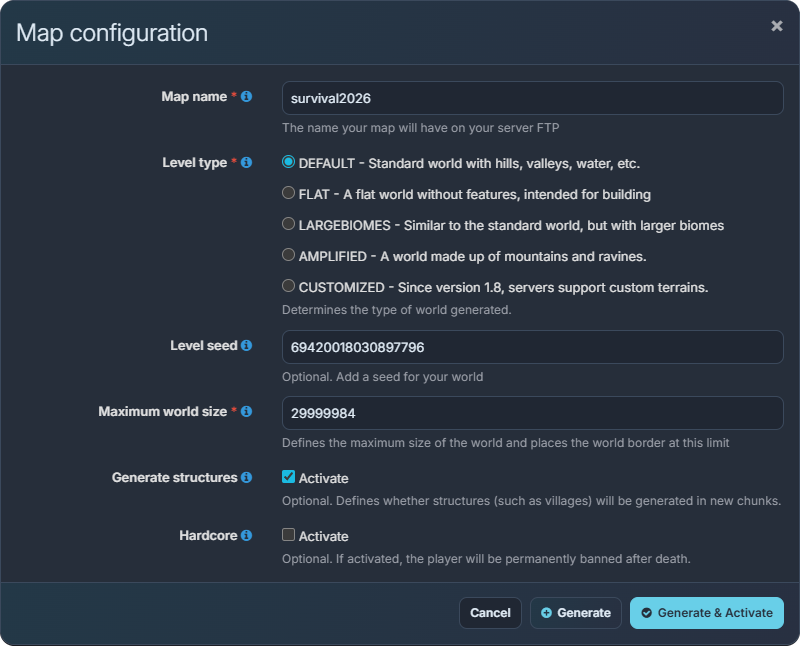
The Java form lets you name the map and enter its seed. Available options depend on your server type.
Method 1: using the Map Manager on Java
- Log in to your customer panel and select your Minecraft server.
- Open Maps, then click the Create a map card.
- Choose an unused Map name containing letters and numbers, such as
survival2026. - Paste your seed into Level seed. On Java, keep Level type → DEFAULT to reproduce the landscapes in this selection and leave Generate structures enabled.
AMPLIFIEDandLARGEBIOMESchange the result. - Choose the action you need:
- Generate & Activate creates the new world and selects it for your server.
- Generate creates the new world, then brings your previous world back into service. This option also restarts the server.
- Wait for the operation to finish and the Online status, then check the active map before inviting your players. The time required depends on the server and world.
You can activate a stored map from the world list later. Activating it also restarts the server. To choose a seed on the official Bedrock server, use method 2 below before generating your new world.
Method 2: editing server.properties directly
This method applies to a Java server or the official Bedrock server. Keep your backup and choose a world name that does not already exist.
-
Stop the server and wait until it is offline.
-
Open WebFTP, then
server.propertiesin the server’s root folder. -
Edit the existing lines without adding duplicates:
level-seed=69420018030897796 level-name=seedworld -
Save and start the server. The new name creates a fresh world. On Bedrock, its folder is inside
worlds/. -
Wait for the Online status and check the loaded world.
Changing only level-seed does not replace saved terrain. Do not delete your old folder to get a new world.
Four seeds for your next adventure
The landmarks below correspond to Java 26.3 with standard generation. The Bedrock alternative is listed at the end of the selection. For another version, select it in Chunkbase before using these coordinates. X and Z give the horizontal position, while Y is the height.
The landscape images are mood illustrations, rather than exact screenshots of the generated worlds.
1. The lake and cherry trees (69420018030897796)
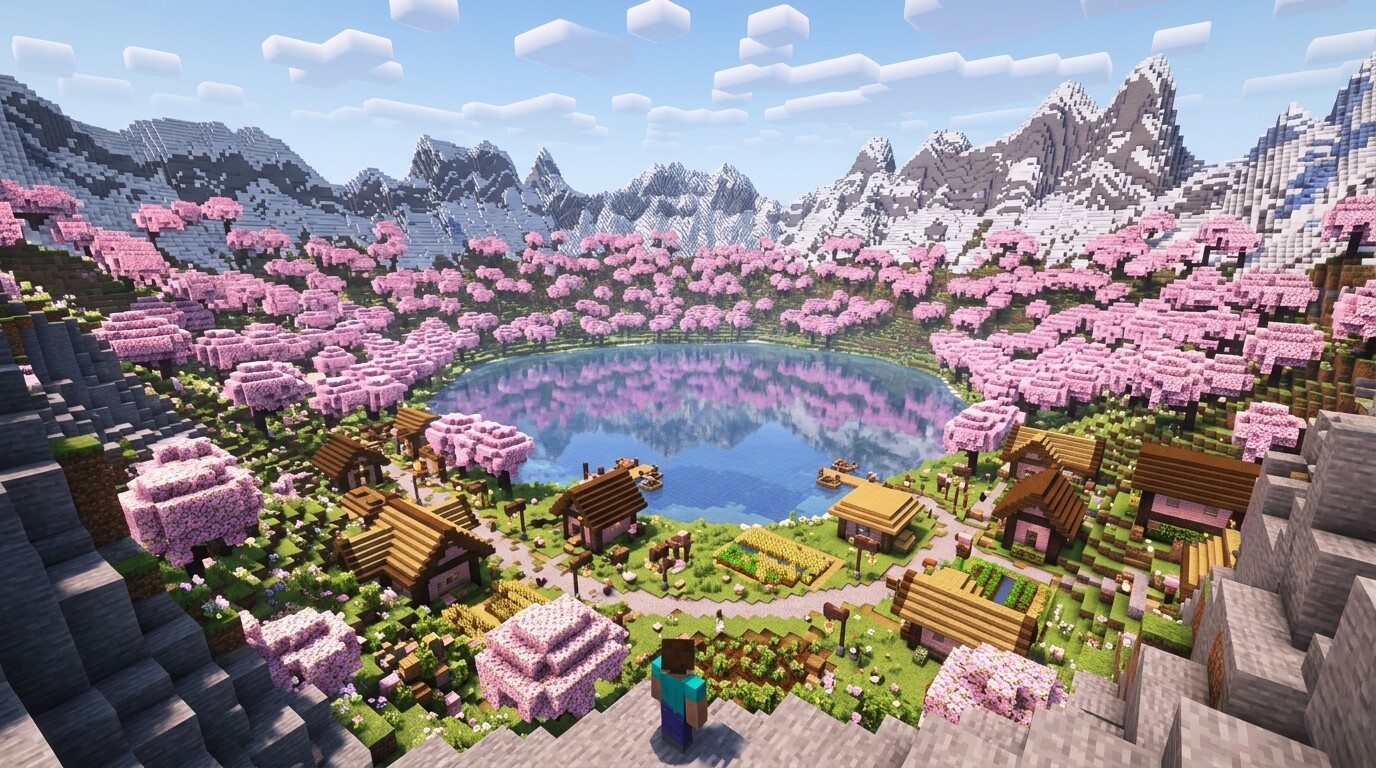
A building idea for a community that wants to settle beside the water.
- Seed:
69420018030897796. - Highlight: a lake and cherry trees near the starting area.
- Java landmark: village around X 64 / Z 48.
This seed suits groups who want to take their time building. Settle near the village, then link neighbourhoods around the lake. Cherry wood adds a pink palette for gardens and bridges.
2. A trial chamber expedition (5924481891000705462)
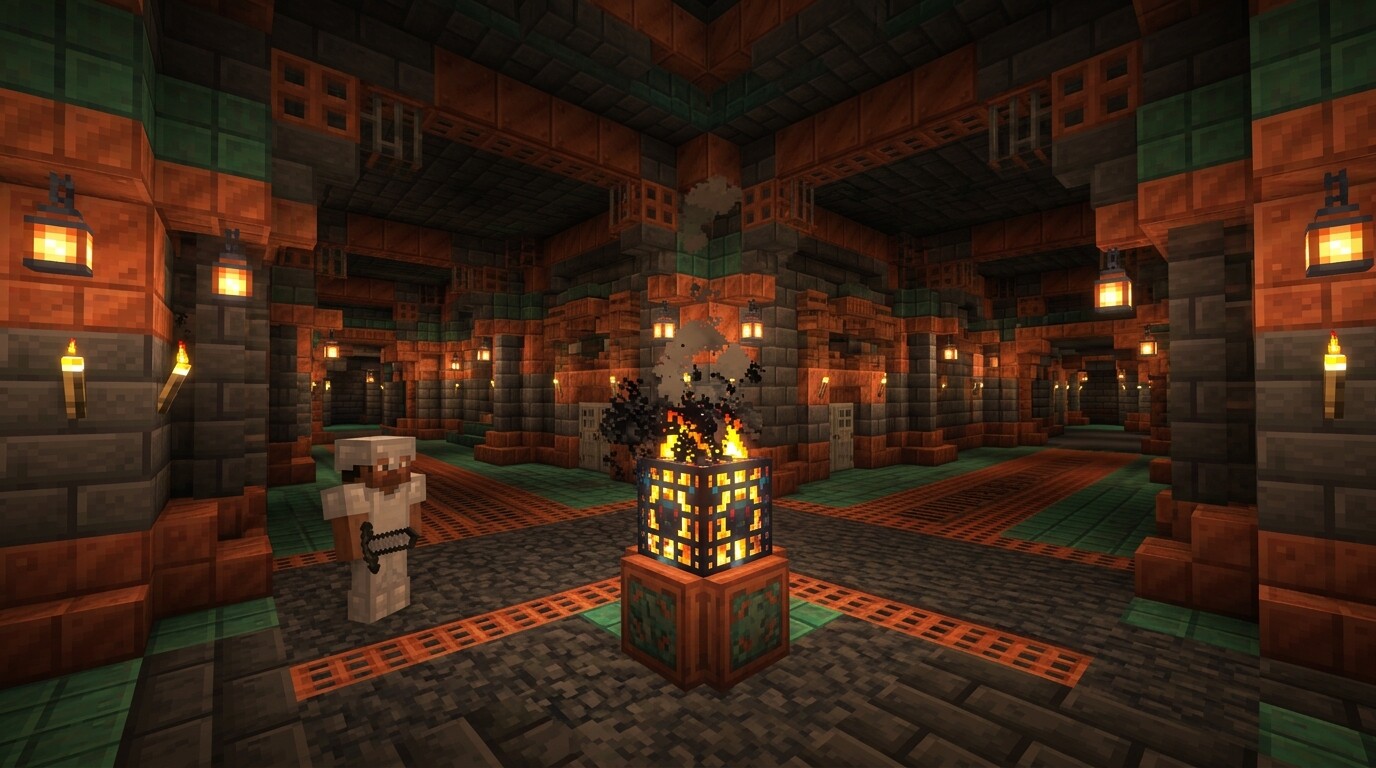
Prepare your equipment before exploring trial chambers together.
- Seed:
5924481891000705462. - Highlight: an underground exploration goal for your group.
- Java landmarks: chamber around X 279 / Y −23 / Z 25, savanna village around X 672 / Z −384.
The chamber and village are separate destinations. Bring wood, food, and equipment to defend yourself before heading underground. Trial chambers, introduced in 1.21, offer fights with trial spawners and vaults unlocked with keys.
3. The mountain basin and savanna village (6944174826991112)
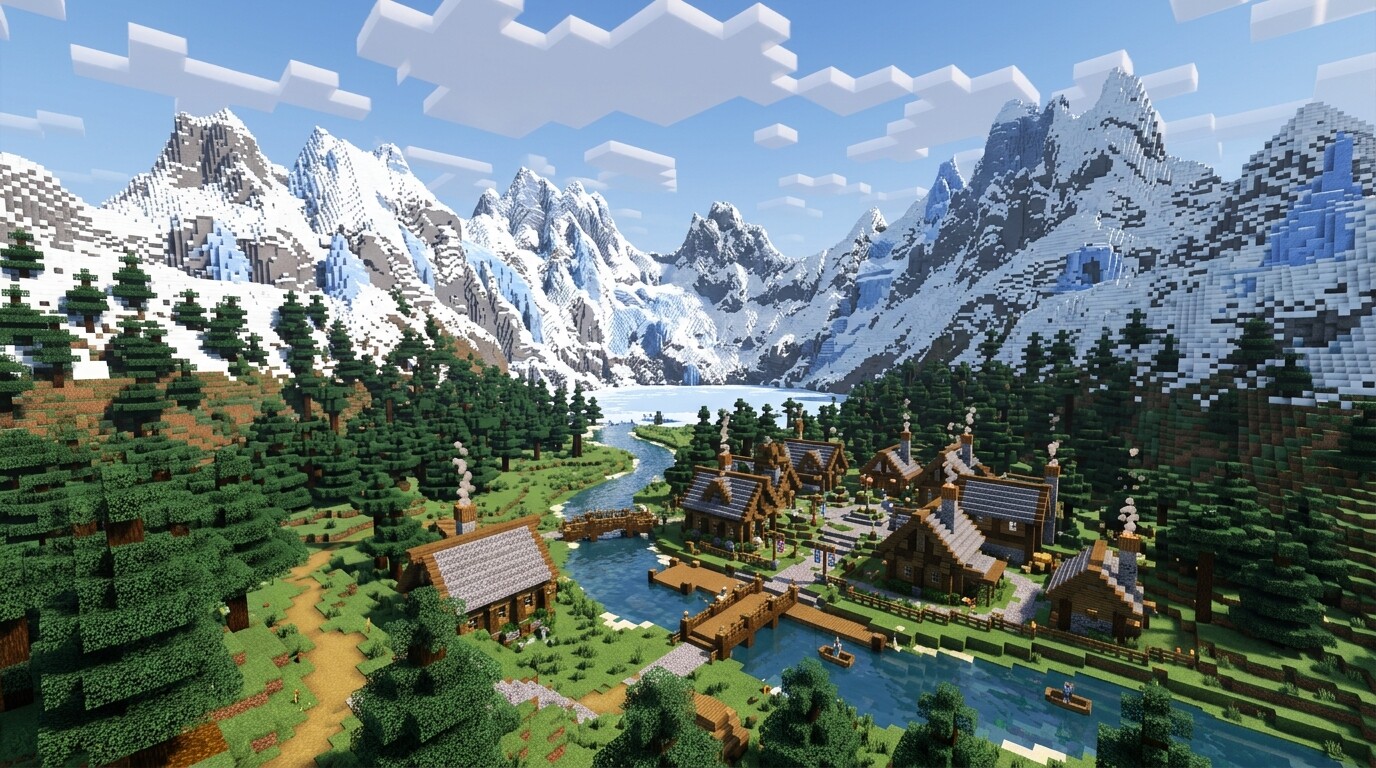
The slopes offer room for houses, terraces, and mountain paths.
- Seed:
6944174826991112. - Highlight: a mountain setting for building across several levels.
- Java landmark: savanna village around X −192 / Z 48.
This start offers a setting for a shared base: each player can occupy a hillside while sharing paths and village facilities. Plan your routes before building, as the changes in elevation are part of the challenge.
4. An island, a taiga village, and a mansion (-3256665480138158078)
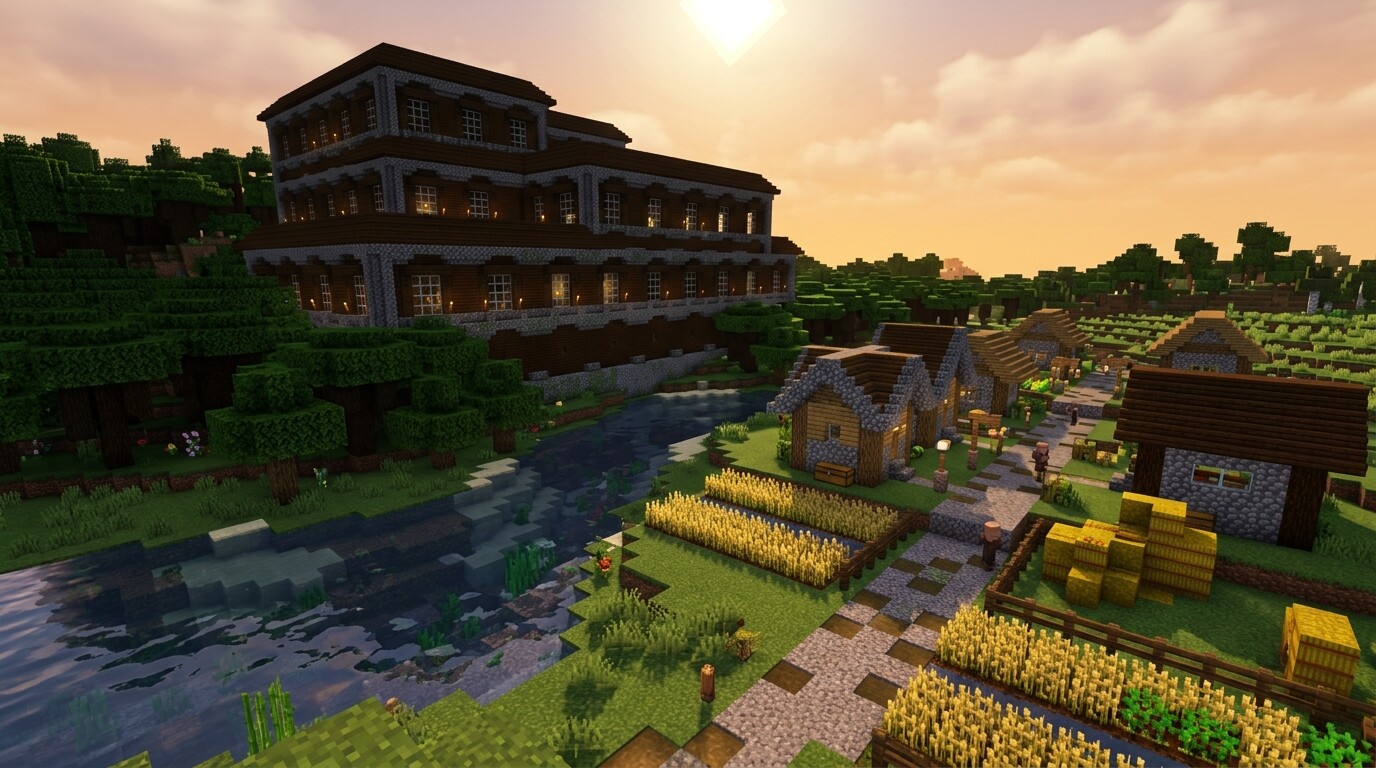
A nearby mansion gives everyone a shared goal, but its residents will not welcome you quietly.
- Java seed:
-3256665480138158078. - Highlight: planning an expedition to a mansion near the starting area.
- Java landmarks: taiga village around X 16 / Z 0, mansion around X 136 / Z 56.
The island start and taiga trees give this world a different character. Build a base and get equipped before the assault: having a mansion nearby does not make its fights easy.
Bedrock 26.50–26.52 alternative: seed -7595019734627322306 offers a mansion around X 152 / Z 88. This is a different world, rather than a copy of the Java seed.
Preparing your server’s opening
- On Java, pre-generate a suitable area with Chunky: select the correct world and centre before starting generation. Our Chunky guide covers the commands. A 5,000-block radius is already a large area, so adapt it to your disk space and group size. Chunky does not install on the official Bedrock server.
- On Java, use a matching world border:
/worldborder set 10000sets a width of 10,000 blocks, extending 5,000 blocks on each side of its centre. Match that centre and area to your pre-generation. The command does not exist on Bedrock and does not delete chunks already saved. Our Minecraft commands guide covers commands by edition. - Keep your backups: creating a map under a new name preserves the old one, but a backup remains useful before changing worlds or versions.
Choose a landscape you like, find your first meeting place, and start your adventure with our Minecraft server hosting plans.