
How to install your own server .jar (OpenMod) on your Minecraft server
On BoxToPlay, you can use the OpenMod feature to launch your Minecraft server with any .jar file, instead of being limited to the versions available through the panel.
 What is OpenMod used for?
OpenMod lets you:
- Run a specific server version such as Paper, Spigot, or Purpur, even if it is not available in the automatic installer
- Test development builds or snapshots
- Use custom Minecraft server forks
 Step 1: Upload your
 .jar file
- Log in to your BoxToPlay panel.
- Select the server you want to modify.
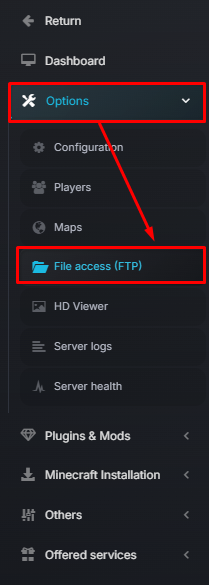
- Open Options, then File access (FTP).
- Upload your
.jarfile to the root of the server, at the same level as folders likepluginsandworld.
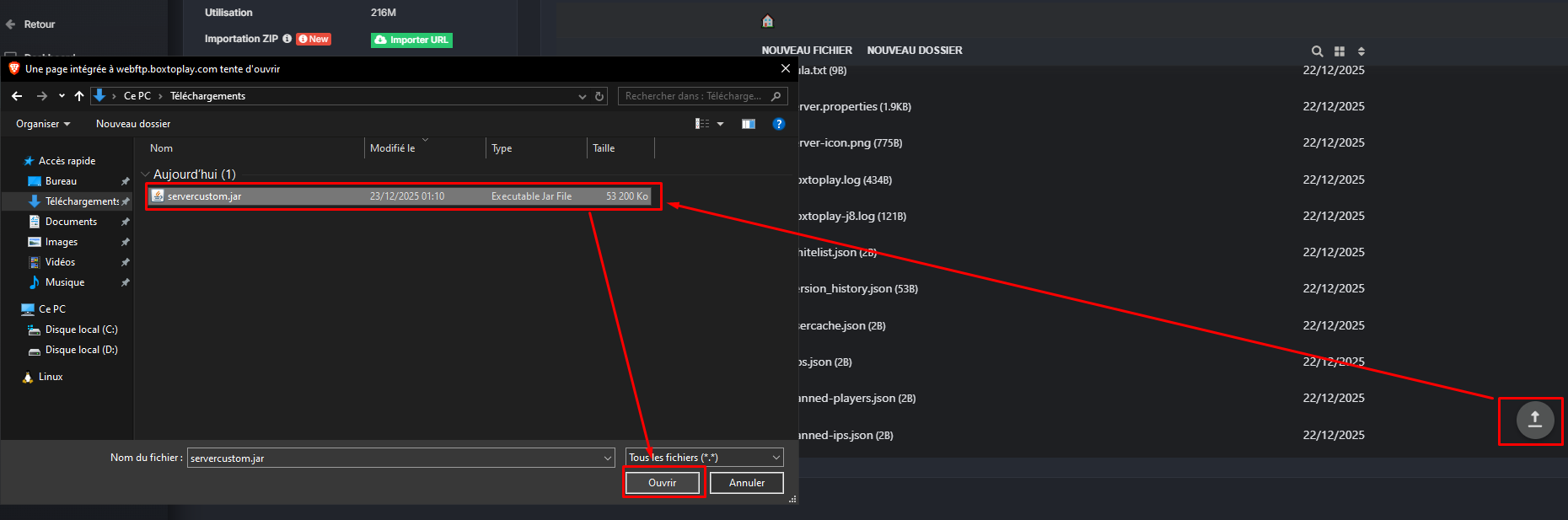
Important: The file must be placed directly in the root, not inside a subfolder.
Step 2: Enable OpenMod and select your .jar
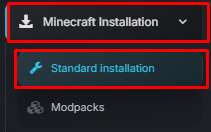
- Go to Minecraft Installation then Standard Installation.
- Enable the .jar selection (OpenMod) toggle.
- Select your
.jarfile from the dropdown list.
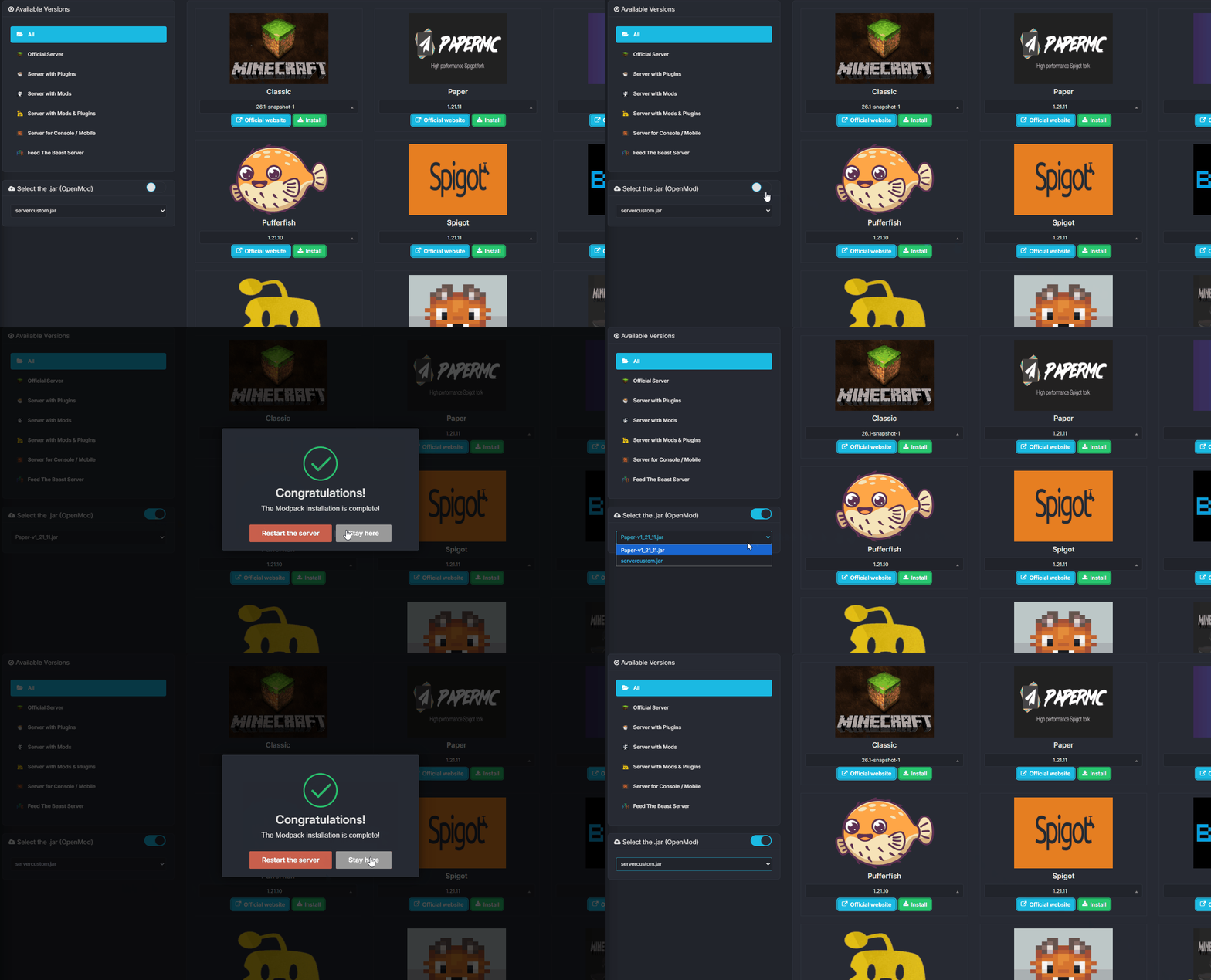
- Your custom
.jaris now installed on your server. - Return to the main page of your server.
- Click Start to launch it.
 Example: Here, I installed Folia, which is not available through the automatic installer, and the console clearly confirms that it started successfully.

 Troubleshooting
If something does not work as expected:
- Check that your
.jarfile is placed in the server root - Make sure the file is not corrupted
- Verify that the selected server version is compatible with your Java version
- Review the server logs for startup errors
 Best practices
- Use clear file names such as
Paper-1.21.1.jar - Keep a backup copy of your configuration files
- Test new builds on a separate server when possible, especially if you already have a live setup
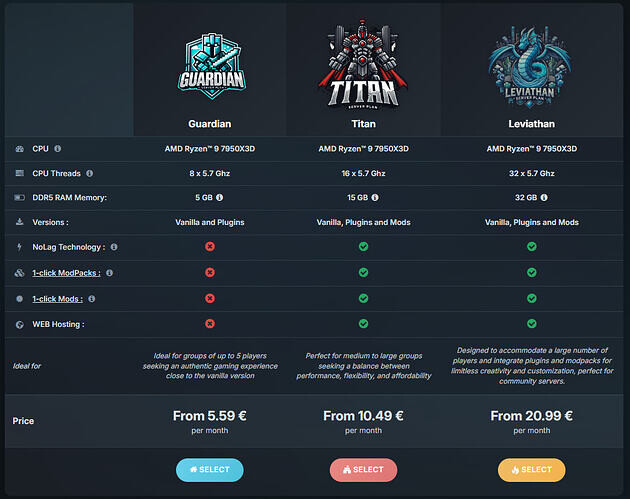
 Need more resources for your server?
Did you know?
You can try this feature for free with our Minecraft offers and benefit from 12 hours of free access using the link below.
You can try this feature for free with our Minecraft offers and benefit from 12 hours of free access using the link below.
