Complete guide: install Hermes AI Agent on a Linux VPS
This guide walks you step by step through installing and configuring the Hermes AI Agent on a Linux VPS server. The goal is to get a fully autonomous agent that runs 24/7 on your VPS, executes commands, automates tasks, and responds through the terminal, Telegram, Discord, and other channels.
Hermes Agent is an open-source self-improving AI agent created by Nous Research. It can plan actions, run code, call tools (web, shell, etc.), and build up memory over time. Once it lives on a VPS, it becomes a background assistant for your projects. If you are interested in similar autonomous assistants, you can also check out our guide to install OpenClaw on a Linux VPS.
1. Requirements on your Linux VPS
Before you start, make sure you have:
- A Linux VPS server (Ubuntu 22.04 or 24.04 recommended, Debian 12 or similar also works)
- SSH access with a user that has sudo rights
- At least 1 to 2 GB of RAM if you use cloud model APIs
- An API key for your model provider (OpenAI, Anthropic, OpenRouter, etc.), or a local model server such as Ollama if you prefer local models
Update the system and install basic tools.
Ubuntu / Debian:
sudo apt update && sudo apt upgrade -y
sudo apt install -y curl git
AlmaLinux / Rocky Linux:
sudo dnf update -y
sudo dnf install -y curl git
2. Install Hermes Agent with the official script
Hermes provides an all-in-one installer for Linux that handles Python, Node.js, and dependencies.
On your VPS, run:
curl -fsSL https://hermes-agent.nousresearch.com/install.sh | bash
Reload your shell so the hermes command is available:
source ~/.bashrc
Check the installation:
hermes --version
Example output:
Hermes Agent v0.16.0 (2026.6.5)
Project: /usr/local/lib/hermes-agent
Python: 3.11.15
OpenAI SDK: 2.24.0
Up to date
If the command is not found, make sure ~/.local/bin is on your PATH or reconnect your SSH session.
3. Initial Hermes setup with the interactive wizard
Hermes ships with a full setup wizard.
Start it with:
hermes setup
The wizard will guide you through the setup (or you can use the “Quick Setup via Nous Portal” option):
- Pick a model provider (OpenAI, Anthropic, OpenRouter, Ollama, and others)
- Enter your API key if you use a cloud provider
- Choose the default model (featuring fuzzy-search on the model picker)
- Confirm where to store memory, skills, and logs (by default
~/.hermes)
You can change this later with:
hermes model
4. Enable the Docker backend for safe execution
Hermes can run shell commands and code. On a VPS it is strongly recommended to execute these inside a Docker sandbox instead of directly on the host.
Install Docker depending on your distribution. For more details or other configurations, read our full guide to install Docker on Linux.
Ubuntu / Debian:
sudo apt-get remove -y docker.io docker-doc docker-compose docker-compose-v2 podman-docker containerd runc
curl -fsSL https://get.docker.com -o get-docker.sh
sudo sh get-docker.sh
sudo systemctl enable --now docker
sudo usermod -aG docker $USER
AlmaLinux / Rocky Linux:
sudo dnf install -y dnf-plugins-core
sudo dnf config-manager --add-repo https://download.docker.com/linux/centos/docker-ce.repo
sudo dnf install -y docker-ce docker-ce-cli containerd.io docker-compose-plugin
sudo systemctl enable --now docker
sudo usermod -aG docker $USER
Reconnect to your session (or use newgrp docker) so your user can run Docker without sudo.
Tell Hermes to use Docker as its terminal backend:
hermes config set terminal.backend docker
Example output:
✓ Set terminal.backend = docker in ~/.hermes/config.yaml
You can switch back to local later with:
hermes config set terminal.backend local
5. Administrate and interact with your agent (Desktop, Dashboard, or Terminal)
To manage, configure, and chat with your Hermes agent on your VPS, the recommended method is to use the Hermes Desktop app. It serves as your primary graphical control center. Browser-based alternatives or direct command-line tools remain available to fit any workflow.
Option A (Recommended): The native Hermes Desktop App
The native Hermes Desktop application installs on your personal computer (Windows, macOS, Linux) and connects remotely to the Hermes daemon running on your VPS. It provides a polished native interface with chat streaming, session history, file drag-and-drop, and a model picker.
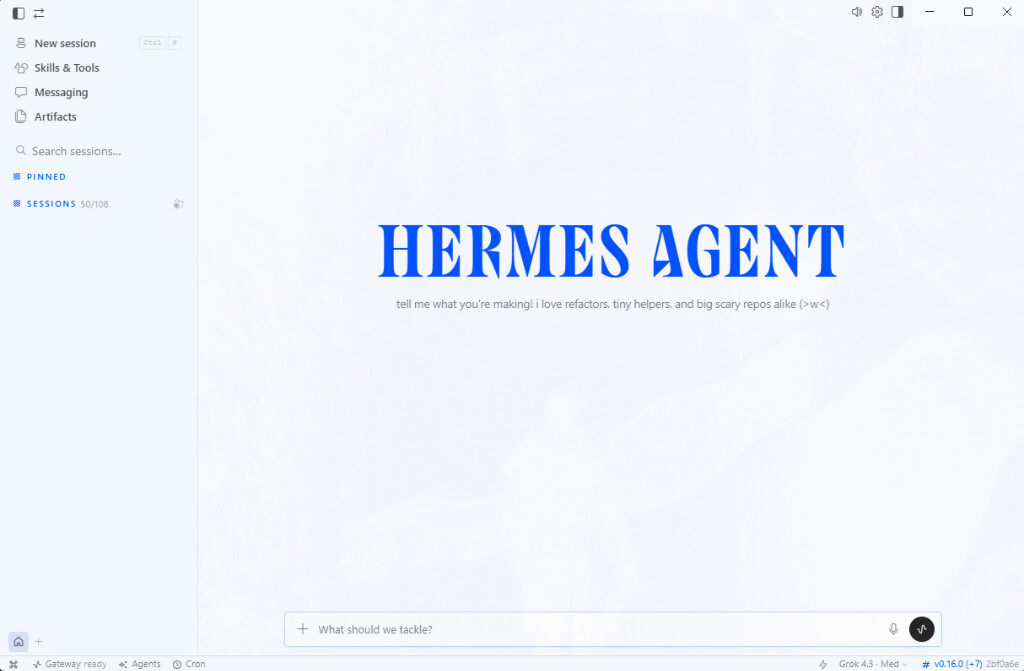
How to connect Hermes Desktop to your VPS:
- On the VPS, define a persistent session token in
~/.hermes/.env:
HERMES_DASHBOARD_SESSION_TOKEN=your_secure_token - Start the daemon on the VPS, enabling WebSockets (via the
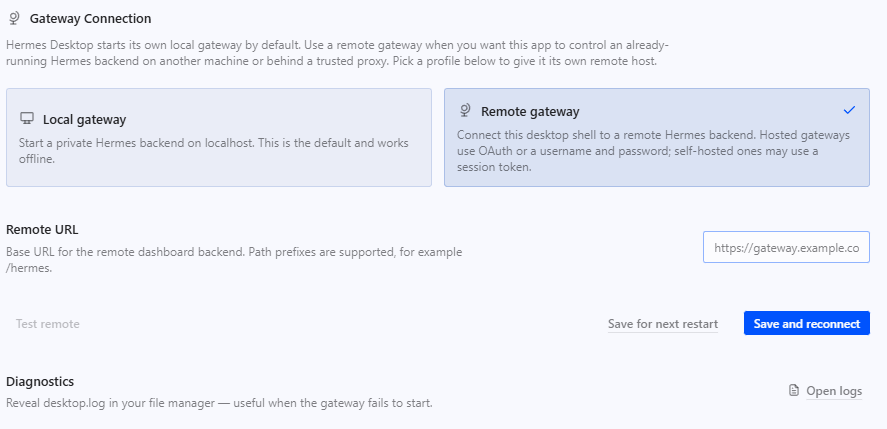
--tuiflag) to allow the Desktop app to connect:hermes --tui dashboard --host 0.0.0.0 --port 9119 --no-open --insecure - In the Desktop App installed on your local computer, go to the Gateway tab on the left sidebar, select Remote gateway, enter
http://<YOUR_VPS_IP>:9119in the Remote URL field, and click Save and reconnect.
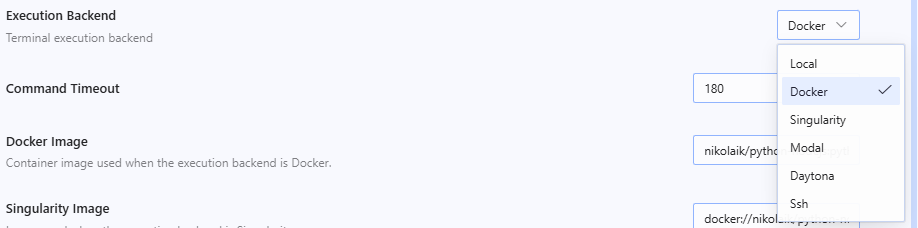
Choosing the Execution Backend:
From this graphical interface, you can configure where Hermes runs its terminal tasks by navigating to Settings > Terminal > Execution Backend. In addition to Docker (the recommended choice, which runs terminal commands isolated in a container on the VPS, as configured in Step 4), you can choose Local (to run directly on the VPS host system without isolation), Ssh (to delegate execution to another remote machine), Modal / Daytona (cloud serverless), or Singularity (HPC computing).
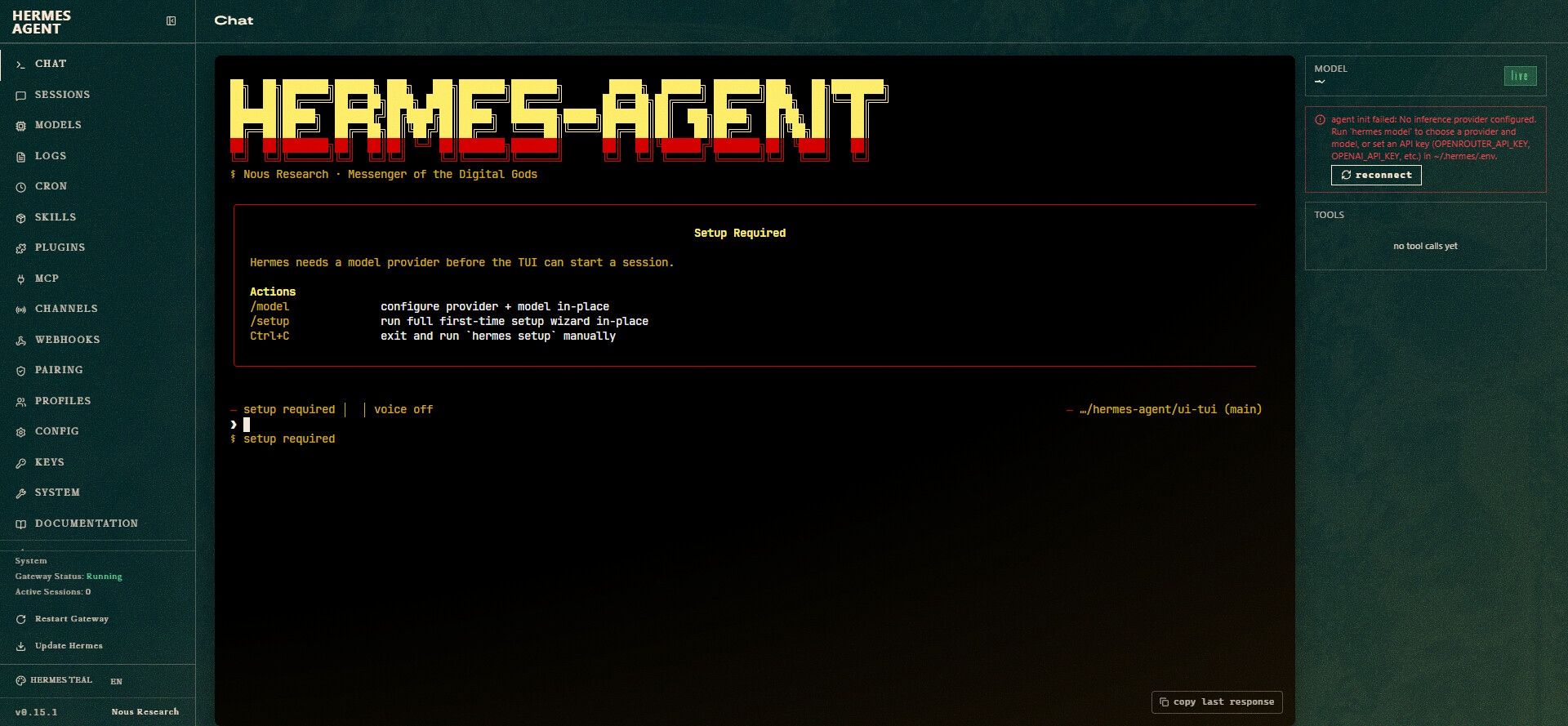
Option B: The Web Dashboard
If you prefer not to install the desktop app, Hermes includes a browser-based dashboard. It integrates your MCP catalog, messaging channels, credentials, webhooks, memory, and secure authentication.
To start the web dashboard on the VPS:
hermes dashboard --host 0.0.0.0
By default, it listens on port 9119. You can access it in your browser at http://<YOUR_VPS_IP>:9119 (make sure to open port 9119 in your firewall if you wish to use this interface).
Option C: Classical Command Line (TUI & CLI)
For developers and system administrators who prefer working directly inside the SSH terminal:
- Interactive Text Interface (TUI): Run the
hermescommand to enter a real-time chat interface. For instance, enterwhat can you do as a hermes agent on this server?. Hermes will plan its answer, call tools, and store the history under~/.hermes. Exit the TUI withCtrl+Dor/quit(you can also revert N turns in your history using the/undocommand). - One-Shot Mode (Quick Command): To send a single command and print only the final text output directly to stdout:
hermes -z "Create a python script that fetches the weather in Paris"
6. Configure messaging gateways (Telegram, Discord, etc.)
One of the biggest advantages of running Hermes on a VPS is being able to interact with it from your phone or chat rooms.
You have two ways to configure these gateways:
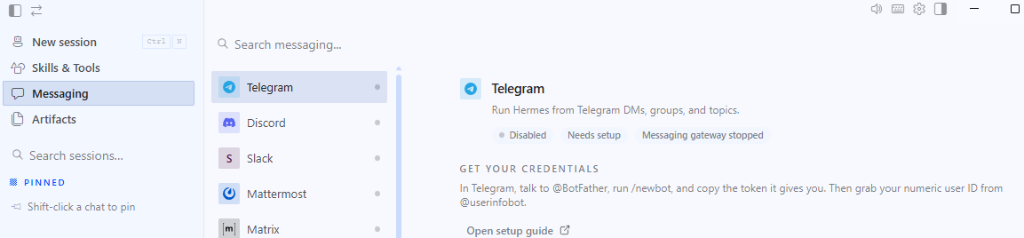
Via the Graphical Interface (Dashboard / Desktop App):
Navigate to the Messaging tab in the left sidebar of the graphical interface. You will find all supported channels there (Telegram, Discord, Slack, WhatsApp, Signal, Twilio SMS, etc.).
For example, for Telegram:
- Follow the on-screen instructions to get a Bot Token from
@BotFatheron Telegram. - Enter your Bot Token and optionally your authorized user IDs in the Allowed Telegram user IDs field (highly recommended to prevent unauthorized access to your agent).
- Toggle the switch at the bottom to Enabled and click Save changes.
Via the Terminal (SSH):
If you prefer using the terminal, run the interactive configuration wizard:
hermes gateway setup
The wizard will guide you step by step to link your Telegram, Discord, or other accounts.
You can then run the gateway in the foreground to test the configuration:
hermes gateway
7. Run Hermes as a persistent 24/7 service
If you only run hermes gateway in an SSH session, the process will stop as soon as you disconnect.
To keep the agent always on, Hermes has built-in commands to install it automatically as a background service (systemd on Linux or launchd on macOS).
To install it as a user service (recommended):
hermes gateway install
Example terminal output:
Start the gateway now after installing the service? [Y/n]: y
Start the gateway automatically on login/boot with systemd? [Y/n]: y
Installing user systemd service to: ~/.config/systemd/user/hermes-gateway.service

✓ User service installed and enabled!

Next steps:
  hermes gateway start              # Start the service
  hermes gateway status             # Check status
  journalctl --user -u hermes-gateway -f  # View logs

✓ Systemd linger is enabled (service survives logout)
✓ User service started
If you prefer to install it as a system-wide service so it starts automatically at boot:
sudo hermes gateway install --system
Once installed, you can easily manage the service lifecycle using the built-in Hermes commands:
| Action | Command |
|---|---|
| Start the agent | hermes gateway start |
| Stop the agent | hermes gateway stop |
| Check the status | hermes gateway status |
To check the status and ensure everything is running correctly:
hermes gateway status
Example output:
● hermes-gateway.service - Hermes Agent Gateway - Messaging Platform Integration
     Loaded: loaded (/home/username/.config/systemd/user/hermes-gateway.service; enabled; preset: enabled)
     Active: active (running) since Fri 2026-06-05 15:13:31 UTC; 2s ago
   Main PID: 3449 (hermes)
      Tasks: 4 (limit: 21479)
     Memory: 82.9M (peak: 97.5M)
        CPU: 2.119s
     CGroup: /user.slice/user-1000.slice/[email protected]/app.slice/hermes-gateway.service
             └─3449 /usr/local/lib/hermes-agent/venv/bin/python -m hermes_cli.main gateway run --replace

Jun 05 15:13:31 demo-vps systemd[1228]: Started hermes-gateway.service - Hermes Agent Gateway.
Jun 05 15:13:33 demo-vps python[3449]: WARNING gateway.run: No messaging platforms configured.
✓ User gateway service is running
✓ Systemd linger is enabled (service survives logout)
8. Automate tasks with hermes cron
Hermes can schedule jobs using natural language, which is extremely useful on a VPS for monitoring and reporting.
Examples:
hermes cron "every weekday at 8 AM, summarize overnight server logs and send to Telegram"
hermes cron "every hour, check if https://example.com returns 200 and alert me if not"
hermes cron "every Friday at 5 PM, list all commits across my Git repos this week"
You do not need crontab syntax. Hermes parses these sentences, sets up the schedule, and runs the jobs unattended.
9. Secure your VPS and Hermes agent
Even if Hermes simplifies automation, it still runs as a service on a VPS server. A few security best practices:
- Firewall: only open the necessary ports (SSH by default). Note that if you use Telegram or Discord bots, they communicate via Long Polling (outbound HTTP connections), so you do not need to open any inbound ports on your VPS firewall. You only need to open ports if you configure webhooks (like Slack), which typically listen on port 443 or a custom port. Use
ufworfirewalld. - Non-root user: run Hermes under a normal user account, added to the
dockergroup if required. - SSH keys only: disable password authentication in
sshd_configand use SSH keys. - Command approvals: keep approvals enabled for sensitive operations in Hermes instead of auto approving everything.
- Backups: regularly back up the
~/.hermesdirectory (memory, config, logs) to an external location.
With this setup, your Hermes AI agent is permanently available on your VPS, ready to handle technical tasks, monitoring, or conversations across your favorite channels.
Conclusion
By installing Hermes on a VPS server, you turn your machine into a fully autonomous AI assistant, perfect for task automation, service monitoring, and centralizing your workflows. At BoxToPlay we focus on reliable and high-performance VPS hosting that fits this kind of always-on agent. If you want to try this setup yourself, you can start your free VPS trial.